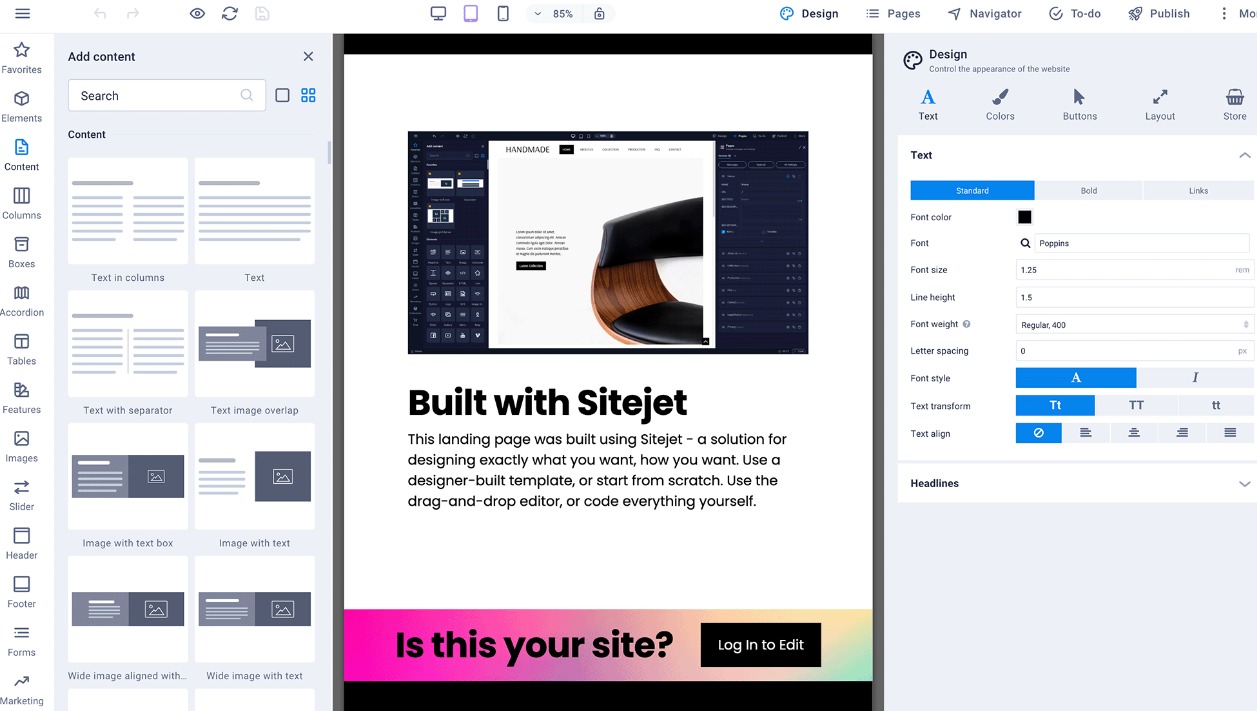

Check out examples of websites our freelancers have created using SItejet. Each of the sites can be bought at auction, easily configured and connected to your domain .
Basic Knowledge About Sitejet
Sitejet uses many powerful presets. For example, with form presets, we can add a working contact form. If we have not entered an email address in the form settings, Sitejet will automatically send the form entries to the customer's login email address.
By default, form entries are sent to the customer's default email address specified in the website contact information. We can specify the recipient's address in the form settings in the "Recipient" field. We can also add multiple recipients using this format: info@addacha,org; belarus20@gmail.com.
Create a Multilingual Website with Addacha
With Sitejet on Addacha hosting we can create not only complex websites, but also multilingual ones. We can copy individual pages and translate their content or change the design of the entire page.
Multilingual websites created with Sitejet recognize the browser language of website visitors and automatically show them the corresponding language if it is available.
Set up Multiple Languages in Sitejet
To illustrate how to add a language to your site, we'll show you how to add a Belarusian version to an English website.
Languages can be managed in the website settings. To activate multilanguage there, follow these steps:
1. Click on "More" in the right corner of the top menu
2. Select "Languages" to access the language settings
3. Click in the field under "Multilanguage" and select "Enable multilanguage"
After we have activated multilanguage, we will see that the current default language is already listed. It is greyed out because it cannot be removed or changed. Move your mouse over it and a "+" symbol will pop up on the left side. Click it to add another language to the project.
Next, click in the empty field to select from a drop-down list of languages. In this case, we would select "Belarusian". Then click on the save icon in the menu bar in the upper left corner of the Website Builder (CMS).
Sitejet has now duplicated all previously created pages in the background and stored the necessary language information accordingly. Now, switch to the page manager of the respective language by clicking on the link button to the right of the language.
You can also modify the SEO settings and other details separately for each page of each language, as described in our articles on SEO and navigation.
Exchange ideas with other web designers about current developments, tips, and tricks and show your favorite sites in showcase Addacha.